
If you want to move your virtual machines (VMs) between computers or share them with others, VMWare Workstation allows you to do this using two common formats: OVF and OVA. Here’s how:
In this article
Understanding OVF and OVA:
OVF (Open Virtualization Format):
- Think of OVF as a recipe that tells your computer how to set up a virtual machine. It includes instructions and files needed to get your VM running.
- It’s a directory containing multiple files, including a descriptor file (.ovf), virtual disk files (.vmdk), and other configuration files. This format ensures portability across different virtualization platforms.
OVA (Open Virtualization Appliance):
- OVA is like a packed lunchbox containing everything your VM needs. It’s a single file that includes the OVF recipe and all the necessary file
- OVA is A single archive file that bundles all the components of an OVF package. It’s essentially a compressed version of the OVF directory, making it easier to distribute and manage.
Exporting a VM as OVF/OVA in VMware Workstation:
- Power off the VM you want to export.
- Go to File > Export to OVF ….
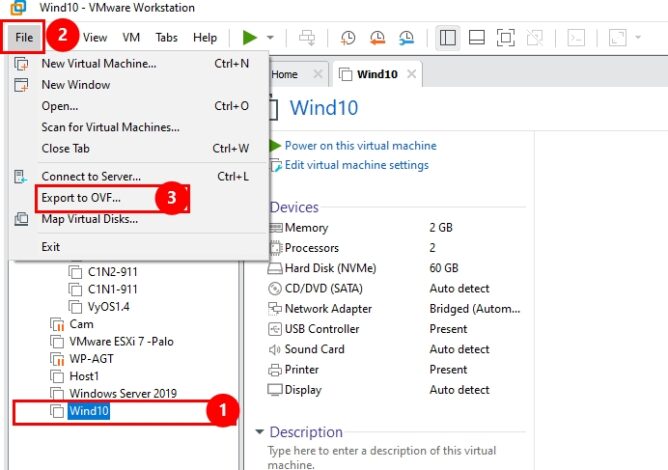
Exporting a VM as OVF
- Choose a destination folder and provide a descriptive name for the OVF.
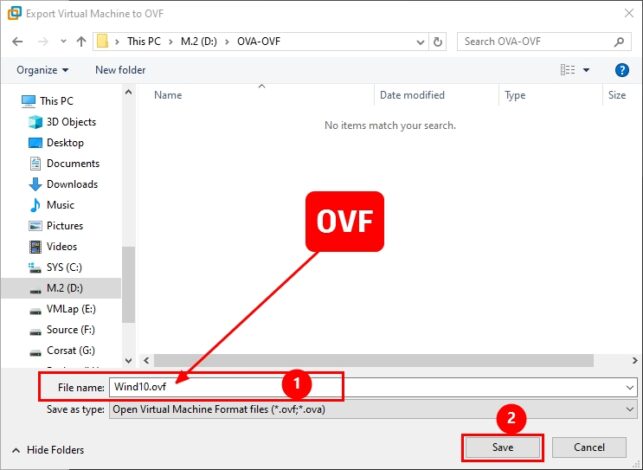
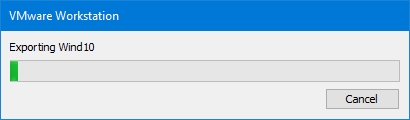

Exporting a VM as OVA
- Choose a destination folder and provide a descriptive name for the OVA file.
- The filename must end with the .ova extension for exporting virtual machines in OVA format.


Importing a VM from OVF/OVA in VMware Workstation:
- Go to File > Open.
- Select the OVF/OVA file you want to import.
- The Import Virtual Appliance Wizard will guide you through configuration options.
- Choose a name and location for the imported VM.
- Specify hardware settings (e.g., CPU, memory) if needed.
- Click Finish to begin the import process.
What is Keys Differences Between OVF and OVA ?
– File Structure: OVF is a directory, OVA is a single archive.
– Portability: Both offer portability, but OVA simplifies distribution.
– Usability: OVA is easier to handle and share due to its single-file for
OVF or OVA ?
– Use OVF if you require more granular control over the exported files.
– Use OVA for easier distribution and management, especially for pre-configured virtual appliances.