
Let’s get started To Connect to Exchange Online PowerShell
In this article
Prerequisites for the Exchange Online PowerShell module
There are two main sets of prerequisites for using the Exchange Online PowerShell module:
Software and System:
- PowerShell version:
To check your current power-shell installed in system try any of below methods
#Method 1
host
#Method 2
$PSVersionTable
#Method 3
$PSVersionTable.PSVersion.major
#Method 4
$PSVersionTable.PSVersion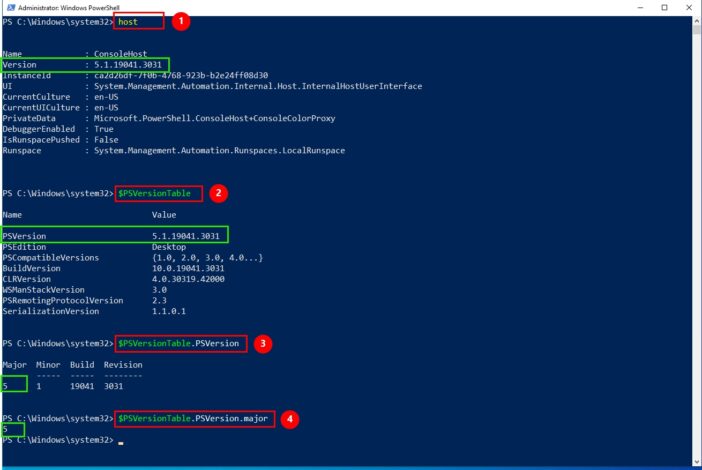
- Microsoft .NET Framework: Version 4.7.2 or later (required for module versions 2.0.5 and later)
# Get installed .NET Framework versions
Get-ChildItem 'HKLM:\SOFTWARE\Microsoft\NET Framework Setup\NDP' -Recurse |
Get-ItemProperty -Name Version -EA 0 |
Where { $_.PSChildName -Match '^(?!S)\p{L}'} |
Select PSChildName, Version
Permissions and Access:
- Office 365 account: You need an Office 365 account with Exchange Online licenses assigned to it.
- Administrative role: You need the Global administrator or Exchange administrator role in your Office 365 tenant to connect and manage your Exchange Online environment.
Additional notes:
- Remote PowerShell connections are deprecated: Microsoft recommends using REST-based connections instead.
- REST-based connections require additional modules: PowerShellGet and PackageManagement modules are needed for REST connections.
- Module version considerations: Different versions of the module might have additional requirements. Check the official documentation for your specific version.
- Set the PowerShell execution policy to RemoteSigned:
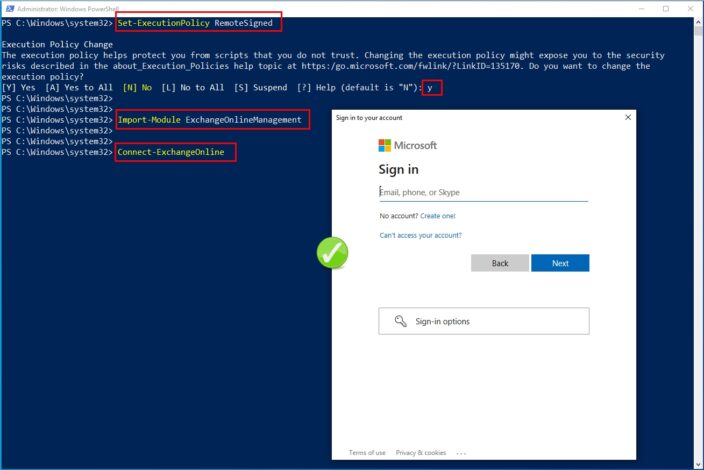
We can’t install PowerShell scripts by default – this is the default behavior of PowerShell. Therefore, we need to set the execution policy that will allow us to subsequently install Exchange Online PowerShell
Open PowerShell on your computer, and let’s sign the execution policy, which, in theory, protects you from scripts that you don’t trust. For more information about execution policies, see About Execution Policies.
Set-ExecutionPolicy RemoteSigned
- Use SSL 3.0 and TLS 1.2 or TLS 1.3 to establish secure HTTPS connections to Microsoft repository
Step 1: Install Exchange Online PowerShell module
- We can check If module is already installed, by using the following command :
Get-InstalledModule -Name ExchangeOnlineManagement
Install-Module -Name ExchangeOnlineManagement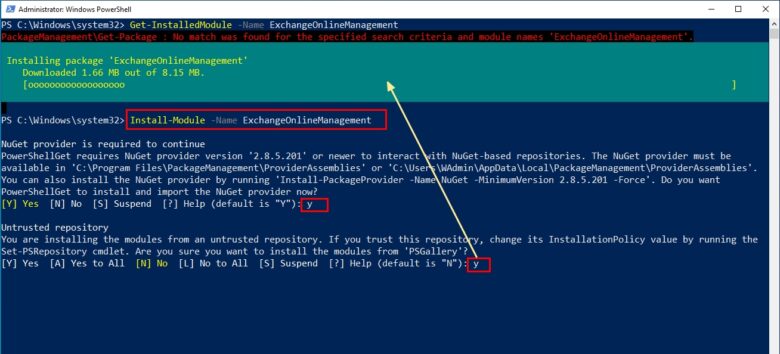
- Or for the just current user account:
Install-Module -Name ExchangeOnlineManagement -Scope CurrentUser- Verify Installation: To verify the module is installed and loaded, run the command again
Get-InstalledModule -Name ExchangeOnlineManagement
#Or
Get-Module -ListAvailable | Where-Object {$_.Name -like "ExchangeOnline*"}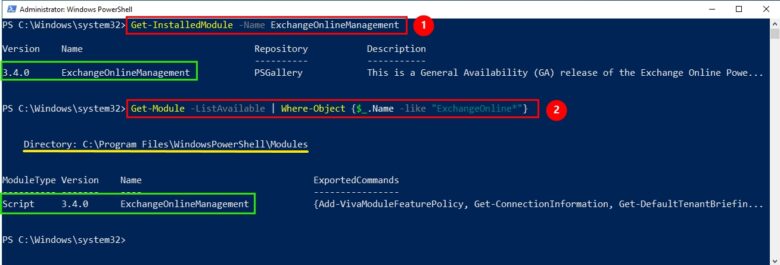
More info About the Exchange Online PowerShell module
Step 2: Update Exchange Online PowerShell Module
- Now we can update it by running this command
Update-Module ExchangeOnlineManagement- To confirm that the update was successful, run the following commands to check the version information of the module to Compare with the latest version that’s installed
Import-Module ExchangeOnlineManagement; Get-Module ExchangeOnlineManagement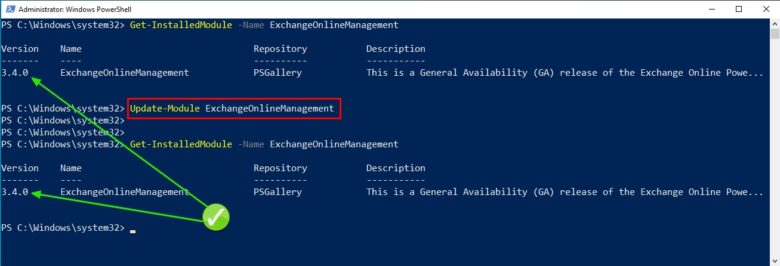
Step 3: Connect with an interactive login prompt
Import-Module ExchangeOnlineManagementConnect-ExchangeOnline -UserPrincipalName YourUsername@Yourdomain.comNow, if we try to execute the module load or connect command without executing the ‘Set-ExecutionPolicy RemoteSigned‘ command mentioned in the prerequisites, we will face a failure above
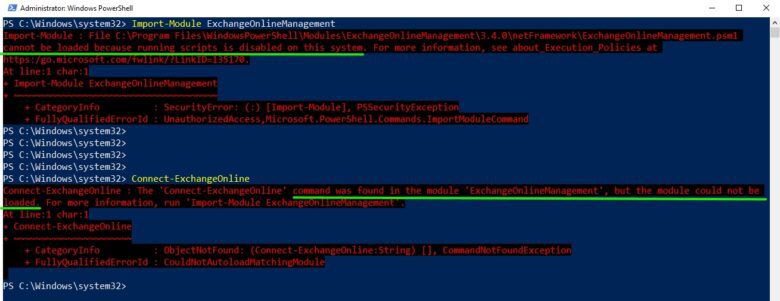
But If we have already executed it, the module will be loaded and connected successfully
Step 4: Disconnect when you’re finished
Be sure to disconnect the session when you’re finished. If you close the PowerShell window without disconnecting the session, you could use up all the sessions available to you, and you need to wait for the sessions to expire. To disconnect the session, run the following command:
Disconnect-ExchangeOnlineTo silently disconnect without a confirmation prompt, run the following command:
Disconnect-ExchangeOnline -Confirm:$falseHelpful Resources:
Thanks for reading and follow us